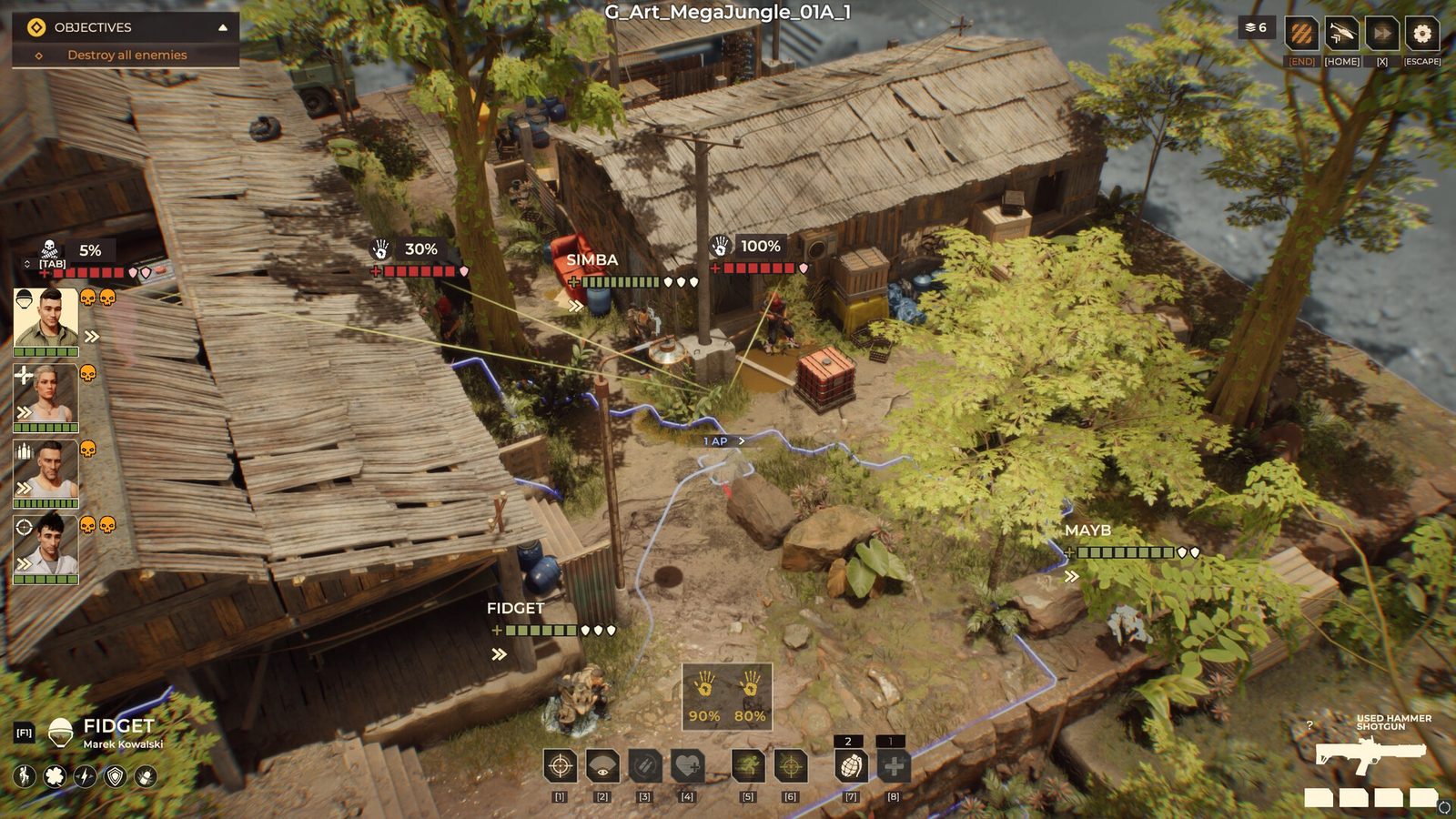
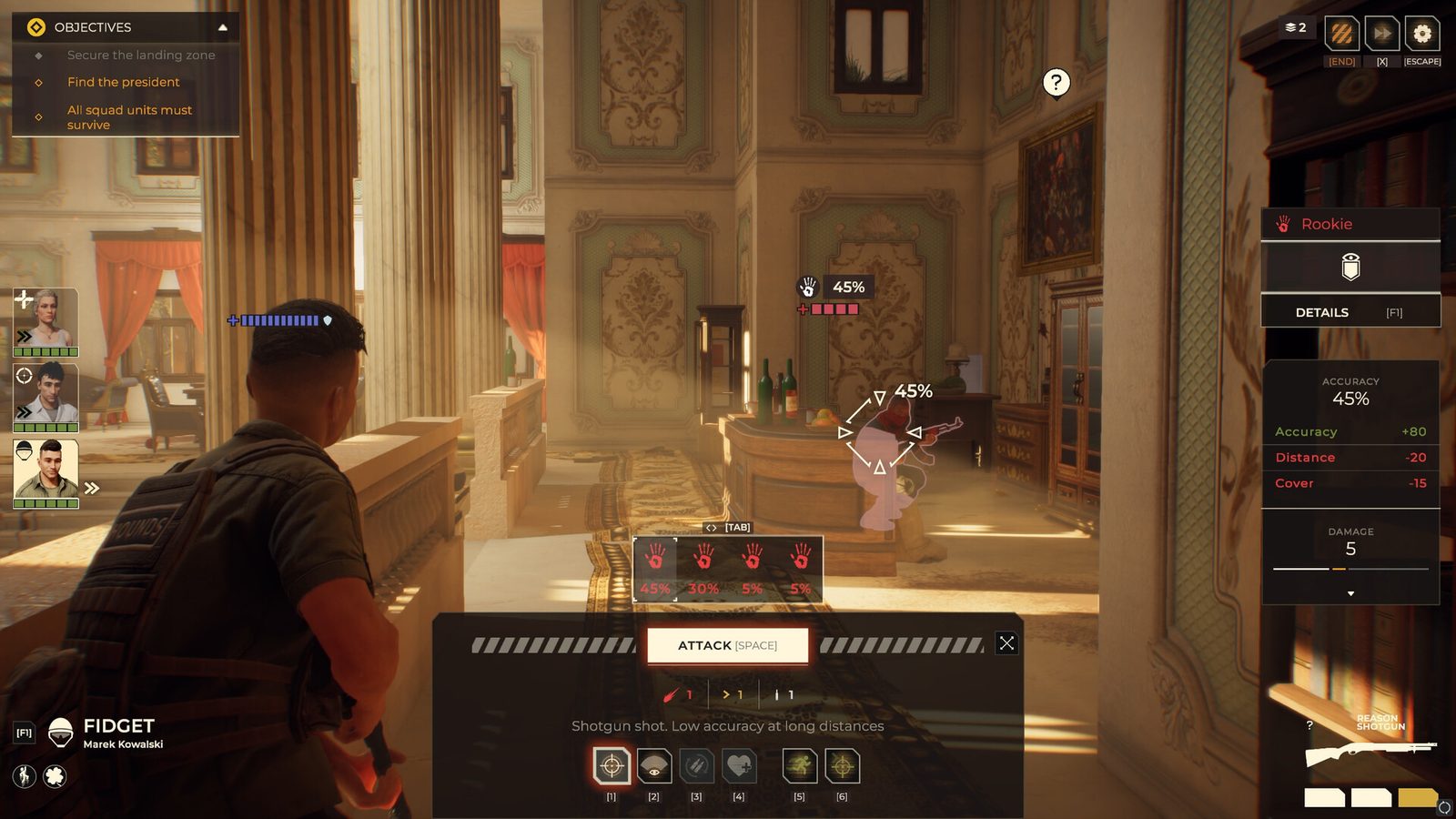
Match the symptom to the change before trying a workaround. A targeted fix in the notes is not proof that every similar problem is resolved on your installed build.
MISSION RULE
No manual extraction in story missions
Update 1.0.2 disables this action in story missions. If that is the option you are looking for, its absence matches the published change. Follow the mission’s displayed objectives; if progression itself is blocked, record the objective and last action instead of treating extraction as the intended escape route.
REWARDS & PROGRESSION
Rescue rewards or Joint Operations
The update lists fixes for missing Rescue rewards and Joint Operation spawning. If either recurs, preserve the affected save and note the mission name, completion result and whether the reward or mission failed to appear. “All missing missions are fixed” would go beyond the announcement.
ABILITIES & SAVES
Reset button or a lost status
The notes address the ability-reset button and specific save/load status bugs. For recurrence, record the ability or status and compare before saving with after loading. Do not assume that a patch repairs an already affected save; keep a separate backup.
A player reported this symptom in a recent AMD discussion; a reply describes a similar launch failure on a GeForce 960. This does not establish an AMD-only fault or a shared cause.
What to record: The exact stopping point, whether it ever progresses, GPU model, driver version and installed game build. Compare your hardware with the retail requirements; running the demo does not establish that the retail game meets the same conditions.
No reproducible fix is established by the reviewed thread. Use the report checklist and preserve the log rather than applying an unverified save or configuration edit.
Published fixes and an unresolved status question.
Hotfix #2 disabled VSync. The reviewed later notes do not state whether it was restored. That absence does not prove the setting is still missing or that it is the only remaining issue.
Historical change · current status unconfirmed
VSync was temporarily disabled in Hotfix #2
Symptom: If VSync is missing in your build, compare its version with the August 14 change.
Official context: Hotfix #2 temporarily disabled VSync after some players experienced camera issues. Later notes reviewed through Update 1.0.2 do not confirm its return.
Safe action: Check the setting in the updated client. If it is absent or causes camera trouble, record the build and display setup rather than editing configuration files from an older workaround.
These problems appeared in official notes and were subsequently marked fixed. If one still occurs after updating, treat it as a new report and include the exact trigger.
Include the mission and whether the final soldier was inside the evacuation zone.
Official fix history: Warhounds announcements on Steam ↗. “Fixed · monitor” reflects the developer’s cautious wording—Hotfix #4 calls its crash change a fix for the “probable cause.”
REPORTING CHECKLIST
Make the problem reproducible.
A useful report describes one problem, the exact moment it occurs, and what changed immediately beforehand. Avoid deleting saves or editing configuration files unless the developer specifically asks.
01
Confirm the update
Allow Steam to finish pending updates. Record the version or build identifier shown by your installed copy, if available; otherwise write “not recorded.” List the official patch note and its date separately. Reading the latest announcement does not establish which build you ran.
02
Preserve the evidence
Keep both files belonging to the affected save; use the save-folder and log instructions below. Take a screenshot and record the mission, action order and visible error message.
03
Add the environment
Include Windows version, CPU, GPU, RAM, display resolution, graphics preset, and whether the problem repeats.
COPYABLE REPORT
Bug report template
Issue:
Installed version / build ID (or not recorded):
Official patch note / publication date:
Date the problem occurred:
Windows version:
CPU / GPU / RAM:
Mission or screen:
Steps to reproduce:
Expected result:
Actual result:
Does it repeat:
Save originated in playtest: Yes / No
Screenshot or error text:
Official Steam screenshot · record the affected screen and visible objectiveOfficial Steam screenshot · capture the visible combat state
New to Warhounds? Read the Warhounds beginner guide before troubleshooting a first-session question.
SAVE FILE LOCATION · WINDOWS
Keep both parts of the affected save.
The developer’s reporting instructions put saves in the folder below. Each save has a file in Save and a corresponding file in Save\SaveData; sending only the top-level file leaves out part of the save.
OPEN IN FILE EXPLORER
Save folder
Paste this into the address bar while signed into the Windows account used to play.
Close the game, open the folder and compare file modification times with your last save. Keep the corresponding files in Save and SaveData together. If the folder is absent, check the Windows account and any redirected AppData location; do not create an empty folder as a repair.
PRESERVE
Copy before troubleshooting
Copy the whole Save folder, including SaveData, to a separate dated backup while the game is closed. Leave the original in place. This preserves the pair without requiring you to guess which single file contains the campaign.
REPORT
Add the log
Player.log is in the parent Warhounds folder. Include it and both save components through the developer’s support channel when relevant. Review attachments for personal information before sharing them publicly.
The developer’s official bug-reporting instructions ↗ were checked September 17, 2026. Customized Windows folder locations can differ. Backup and restore have not been tested on a local game installation; this is a locate-and-copy procedure, not a recovery guarantee.
EVIDENCE LABELS
What each status means.
Official
Directly stated in a Warhounds developer announcement.
Fixed · monitor
A fix is published, but the developer used qualified language or later reports may need a fresh reproduction.
Community report
A player claim that is not promoted to confirmed status without corroboration.