Independent Warhounds guide · Unofficial and player-focused
PC TACTICAL GUIDEUPDATED SEP 29, 2026
Warhounds Beginner Guide for New Players
Read the mission conditions before choosing a target, check the cost on the movement preview, then inspect the selected shot’s modifiers. The two official screenshots below show where to look and how to distinguish the displayed hit chance from damage. Between missions, note that Patch 1.0.1 changed how the Recon Drone becomes available.
Version notes updated September 29, 2026 for Update 1.0.2. Screenshot capture builds are not recorded; the examples explain the pictured UI, not a tested retail build or a complete combat formula.
OBJECTIVES & MOVEMENT
Read the mission, then the route.
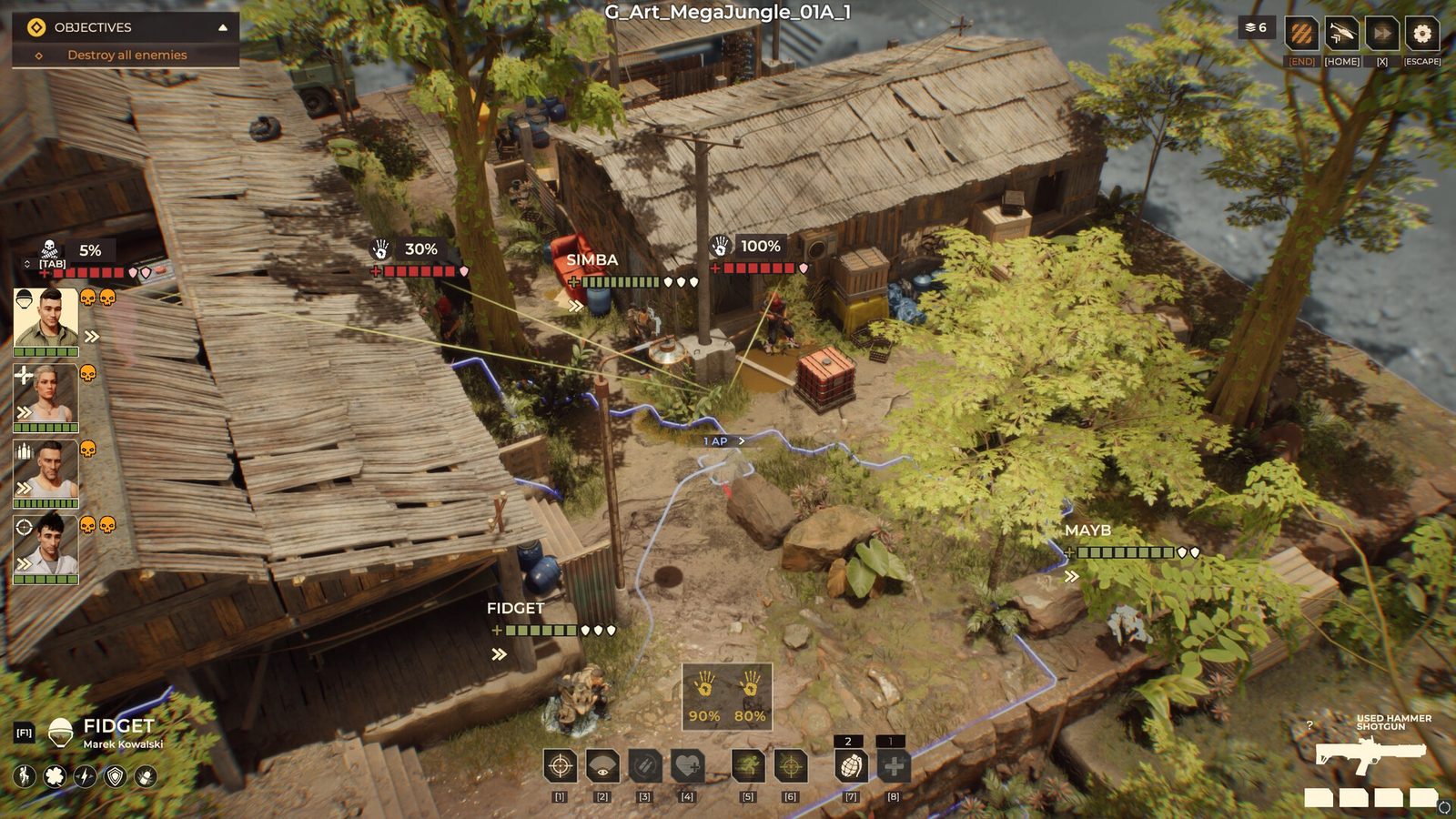
In the jungle example, the upper-left objective says “Destroy all enemies.” Fidget is selected at the lower left, and the proposed route carries a “1 AP” label. Those are different pieces of information: what the mission asks for, who will act, and the previewed movement cost.
Official Steam screenshot. Locate the objective at upper left and the 1 AP route label near the centre. Open the image for a larger view. Capture build not recorded.
01 · OBJECTIVE
Use the actual condition
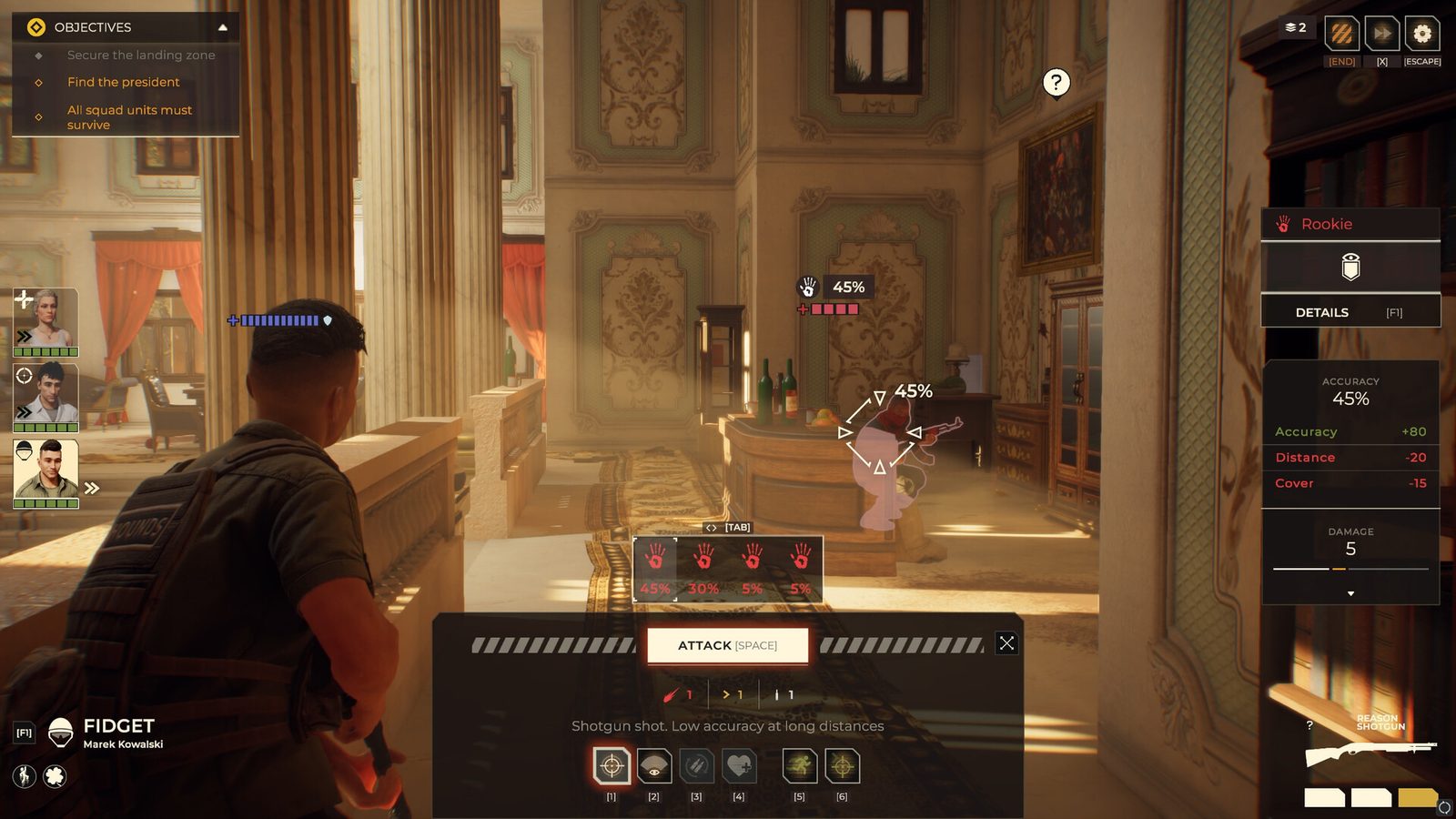
This scene calls for eliminating enemies. The indoor screenshot below instead lists “Find the president” and “All squad units must survive.” In that example, losing a squad member would conflict with an explicit condition even if you eliminated the visible target.
02 · SELECTED UNIT
Check who will move
The lower-left panel names Fidget, while other squad members remain visible on the map. Confirm the selected soldier before judging a route: the displayed path belongs to that selection, not to the entire squad.
03 · MOVEMENT PREVIEW
Read the cost label
The pictured route is labelled 1 AP. That does not establish the cost of every route or prove how many attacks will remain afterward. Compare the route’s current cost with the actions shown for your selected soldier before confirming movement.
HIT CHANCE & DAMAGE
Explain the 45% shot.
The selected shotgun attack shows Accuracy +80, Distance −20 and Cover −15. In this image, 80 − 20 − 15 = 45, matching the displayed 45% hit chance. The damage readout is 5, a separate value without a percent sign.
Official Steam screenshot; capture build not recorded. The right-hand panel explains the selected attack. The lower target strip contains other percentages; do not add them together. Update 1.0.2 revised this window and fixed specific line-of-sight calculations. Use your installed version’s preview; this image explains an older example. See the 1.0.2 changes.
WHAT EACH READOUT MEANS HERE
Chance is not damage.
Accuracy +80
The positive accuracy entry in this preview. The image does not establish a universal base accuracy for every soldier or weapon.
Distance −20
The selected shot has a distance penalty. The screenshot’s shotgun description also warns of low accuracy at long distances; it does not supply a range-to-penalty table.
Cover −15
Cover reduces this preview by 15 percentage points. Do not assume that every cover type, angle or weapon produces the same penalty.
Damage 5
A separate displayed damage value, not 5% hit chance and not proof that every successful shot deals exactly five damage.
COMPARE
Keep the target in view
Note the selected target and weapon before comparing another preview. Switching to a different target changes the question; the target strip’s 45%, 30% and 5% entries should not be combined into a squad-wide probability.
INSPECT
Look for the limiting factor
If distance or cover is the penalty, inspect a possible closer position or different angle and its movement cost before committing. The official game description identifies flanking, high ground and destructible cover as tactical options, but this image does not quantify their bonuses.
DECIDE
Read the resulting preview
When the target, position or weapon changes, use the new readout. A higher hit chance alone does not settle the move if it jeopardizes a mission condition such as keeping all squad units alive.
The developer’s August 19, 2026 combat explanation describes separate hit calculations for each bullet, reduced-damage grazes, and missed rounds continuing through the scene. Use those distinctions when deciding whether a shot will protect your objective.
BURST
Allow for mixed results
A burst can contain both hits and misses. Do not treat the displayed chance as a promise that the entire burst lands, or the damage readout as a guaranteed total.
COVER
Account for a graze
Cover affects both whether a shot hits and whether a hit deals reduced damage. If a target must fall this turn, keep another option available rather than counting a covered hit as full damage.
TRAJECTORY
Check beyond the target
Missed bullets can strike allies or objects along their path. Before firing, inspect the firing lane and what lies beyond the target; moving an ally out of that lane addresses a different risk from improving accuracy.
Source: Brightika’s post-release ballistics explanation ↗. These are documented rules and planning implications, not measured hit rates. Its listed burst percentages are not used here as a universal weapon formula.
CLOSE RANGE
Check the flank as well as the distance.
The advertised condition
The official Steam description ↗ pairs flanking with close range for its 100% hit-chance claim. It does not promise that every nearby shot hits.
Your next decision
Compare the actual attack preview after repositioning. The source gives no exact distance or angle threshold, so do not substitute a guessed tile count for the displayed result.
GRENADE LAUNCHER
Launcher equipped, but no secondary-fire option?
Check the grenade action
In a September 27 Steam thread, a player with a launcher on their back could not find how to fire it. Another player directed them to select a grenade to shoot; the original poster confirmed they had found the same answer. Check the grenade action instead of looking only for a separate “secondary weapon” button.
Read your current preview
This is a community-confirmed answer to that specific launcher question, not a tested keybind or a rule for every secondary weapon. Check the displayed action cost and target before confirming. If the action is unavailable, record the launcher and grenade names, build and a screenshot of the action bar for the issue report.
Check the Workshop before hunting for a drone contract.
Patch 1.0.1, published August 24, 2026, removed the Recon Drone contract and made the drone available immediately after building the Workshop. An older guide that tells you to find that contract describes the previous unlock path.
THE CHANGED REQUIREMENT
Build the Workshop
For the unlock described by this patch, the relevant base milestone is the Workshop, not completing a separate Recon Drone contract. The announcement does not state that the drone or its deployment is free.
IF IT DOES NOT MATCH
Record the version and base state
If your updated game still differs, record whether the Workshop is built and which version you are running. Use the issue-reporting checklist instead of restarting a campaign or deleting a save on the strength of an old guide.
Already own a drone but cannot equip it on a soldier? Players describe drones as extra squad units, selected during mission preparation.
Open mission preparation
Go to the helicopter hangar screen where you select the fighters for the mission.
Add the drone
Look for the + button at the top right and select a drone to accompany the squad. Check the resulting selection before launching.
If you were checking equipment slots
Return to mission preparation: the reported control adds the drone alongside the fighters, rather than fitting it into a soldier’s item slot.
Players independently described this control in August’s “How to Field Drones?” ↗ and September’s “How do you equip drones?” ↗. These reports predate Update 1.0.2 and do not document individual drone abilities or action costs. If your screen differs, include its screenshot and your build in the issue report.
Recruitment changed in Update 1.0.2: you can now choose a class for rookies. Older advice that treats all rookie classes as unselectable no longer describes the announced feature. The note does not establish veteran class switching or an exact menu sequence.